 KeyBolt
Plan and Run the Day in Dispatch
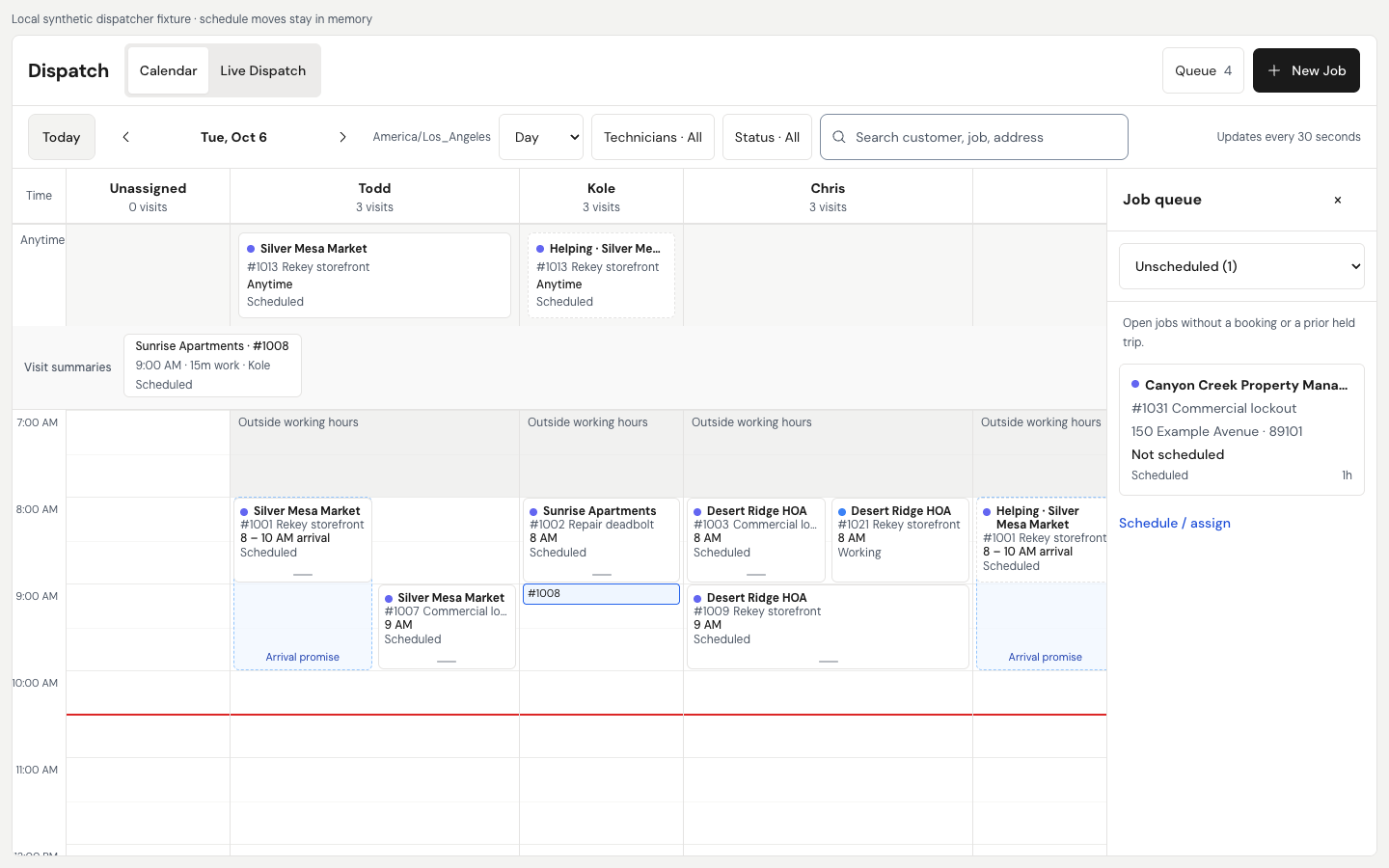
Dispatch is the web workspace for planning your crew's day. The owner turns on Dispatch board in Settings > Features. Staff also need permission to open Dispatch. Use a browser for the board; the native app remains the place for the tech's own jobs.
Choose a View
- Day: compare each tech's bookings for one day.
- Week: plan work across several days.
- Month: see the wider schedule and open a day's work.
- Live: follow today's visits and their recorded progress.
The views share filters. Dates and times follow the shop's time zone. Live shows recorded job activity; it is not a live GPS tracker.
Work Through the Queues
Open Job queue and choose Unscheduled, Unassigned, Missed, On hold, Paused, or Ready to invoice. Pick a job to inspect it and use Schedule / assign or Book return visit as appropriate.
Move or Book Work
- Choose the job and review the customer, address, crew, and trip.
- Use Move / reschedule, or drag a movable booking to a new time or tech.
- Check the arrival promise, expected work length, and any conflict or drive warning.
- Confirm the change and check the saved booking.
Dragging proposes a change; review it before confirming. Started and historical trips are read-only on the calendar. Use the job's appropriate status or return-visit action instead of trying to move a past trip.
See Set Arrival Windows and Check Drive Time and Put Work on Hold and Book a Return Visit.
Open the Full Job for Billing
The inspector gives you the job's context without leaving Dispatch. Open the full job and its Finance workspace to review charges, send bills, or take payments. See Choose How to Get Paid.
Turn the Board Off
The owner can turn it off in Settings > Features. That hides the board and custom statuses while keeping jobs and schedules.
Last reviewed October 12, 2026.
Related articles
Still need help? Contact us and we'll respond within 2 business days.