 KeyBolt
Track Counter Drop-offs
Use Counter drop-offs for locks, keys, or safes customers leave at your counter. Track the claim number, shelf spot, item photo, and pickup stage on one job. The owner turns it on in Settings > Features.
Receive an Item
- Open Create Job and choose the counter drop-off option.
- Enter the Claim # from your paper slip. KeyBolt does not replace the slip with an automatically assigned claim.
- Add the customer and work details you know. A drop-off does not need a field service address.
- Add a Shelf spot and an Item photo so someone else can find the right item.
- Save the job and give the customer the matching claim slip.
Finish and Hand It Back
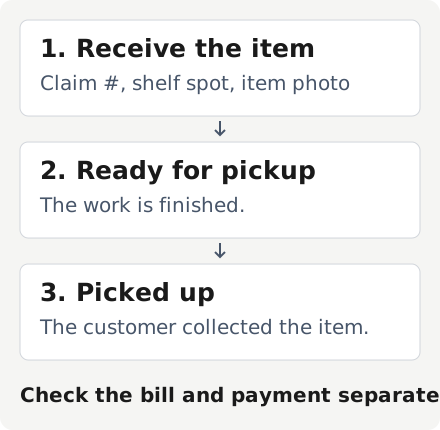
Mark Ready for pickup when the work is done, then Picked up when the customer collects it. These replace Start Route and Arrived for drop-offs. Review the bill and collect payment separately; marking Picked up does not mean the bill is paid.
Find a Claim Quickly
Use Find claim # on the main web dashboard or the phone's Today screen. The result shows the item photo, customer, pickup stage, shelf spot, and job link. Global search and the Jobs list can also find claims. Global search labels a match Claim # to distinguish it from the job number.
Use the exact claim number on the web. The phone's Jobs list can also match part of the claim as you type.
Correct a Pickup Stage
Use the offered undo action and read its confirmation. Moving back from Ready can reopen work and can be blocked by a sent bill or payment. Check the current state before retrying.
Stop Taking New Drop-offs
The owner can turn the feature off in Settings > Features. Existing items can still be marked Ready and Picked up.
Last reviewed October 12, 2026.
Related articles
Still need help? Contact us and we'll respond within 2 business days.